GCP
Adding a GCP project forwards its audit log events, and your organization's Security Command Center findings, to Cloud Defense. Both appear under Events, and alert rules can act on them. Setup is two Terraform templates that you apply yourself; Cloud Defense creates no role or identity in your organization.
Before you start
| Prerequisite | Why it's needed | Where to check |
|---|---|---|
| The GCP project ID | It identifies the project in Cloud Defense | Google Cloud console, project selector |
| A Cloud Defense API key | The templates use it to authorize the events they push to Cloud Defense | API Keys: create one and copy it before you start |
| Your GCP organization ID, the first time you set up a project in an organization | The organization template forwards Security Command Center findings for the whole organization | Google Cloud console, organization settings |
| Terraform, signed in to Google Cloud with permission to enable APIs and create Pub/Sub topics and subscriptions in the project, and, for the organization template, to create a service account and grant it Security Command Center notification permissions on the organization | The templates create these resources | Your IAM roles in the project and organization |
Set up a GCP account
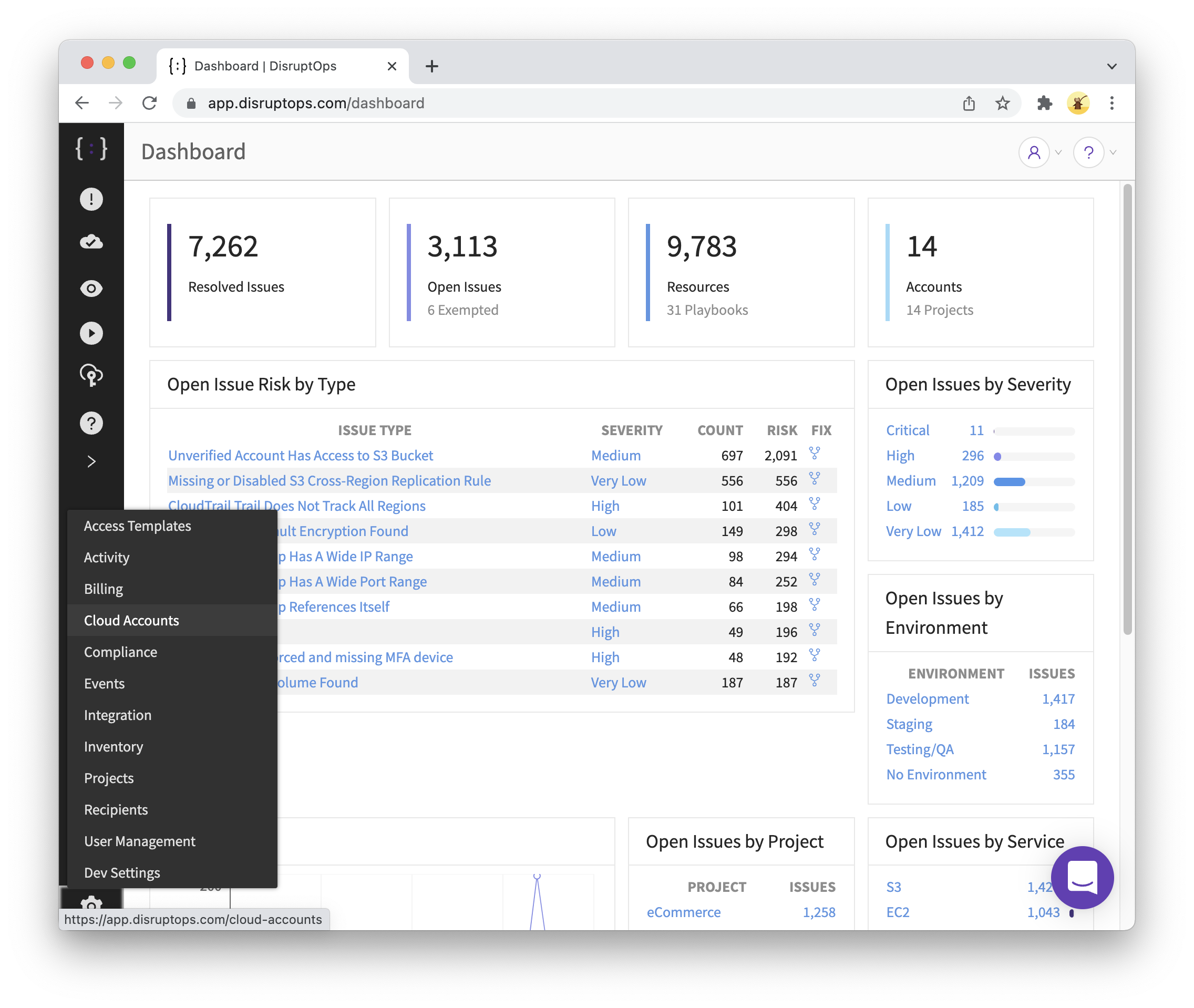
- In Cloud Defense, go to Settings > Cloud Accounts and click Add Cloud Account.
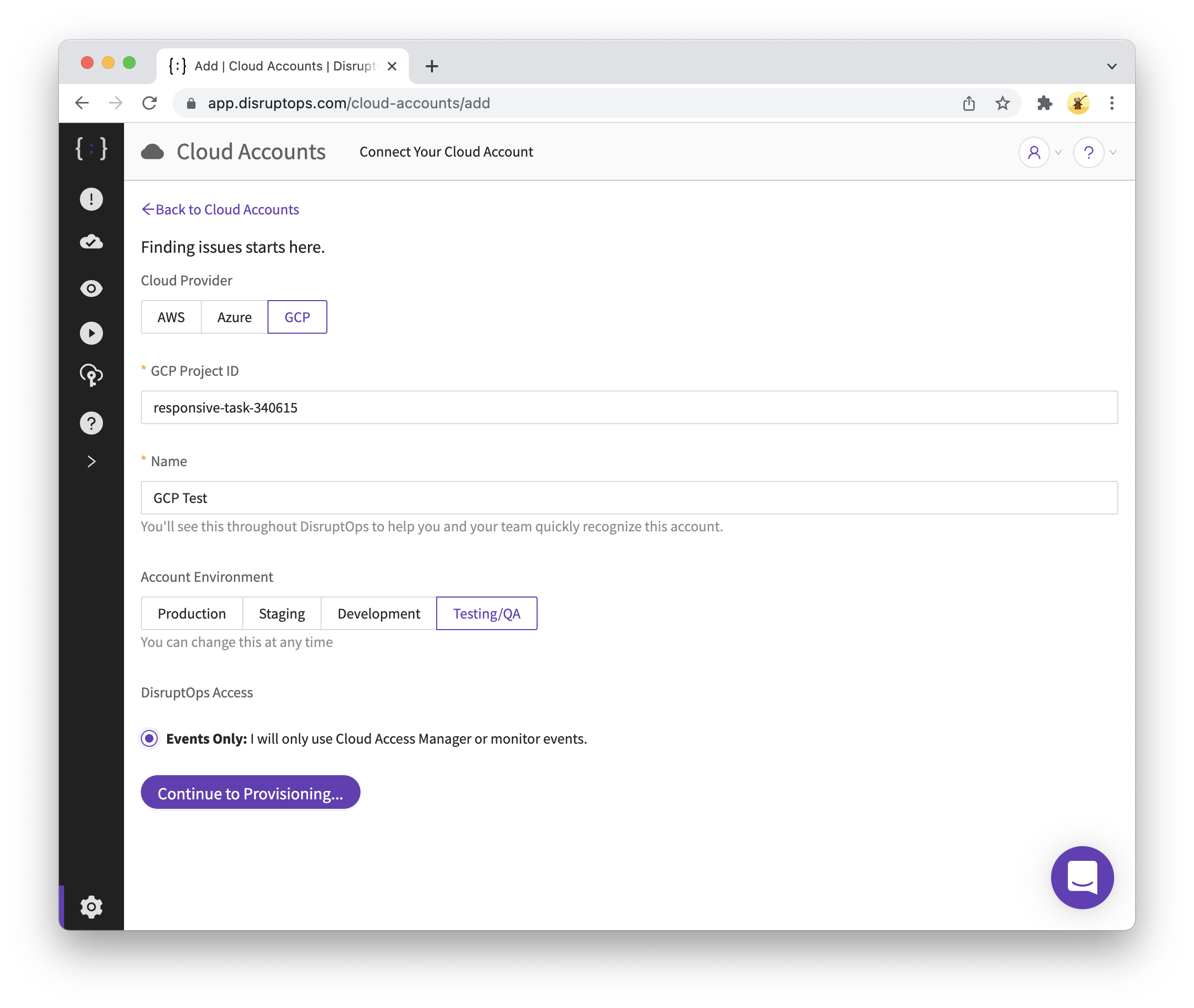
- Cloud Provider: GCP. Enter the GCP Project ID, a name, a project, and the Account Environment. Cloud Defense Access is Read Only for GCP. Click Continue to Provisioning.
- On the Provision page, apply the organization template once per organization: download it, copy its tfvars, fill in your organization ID and the API key, and apply it against the organization. Skip this step if you already did it for another project in the same organization.
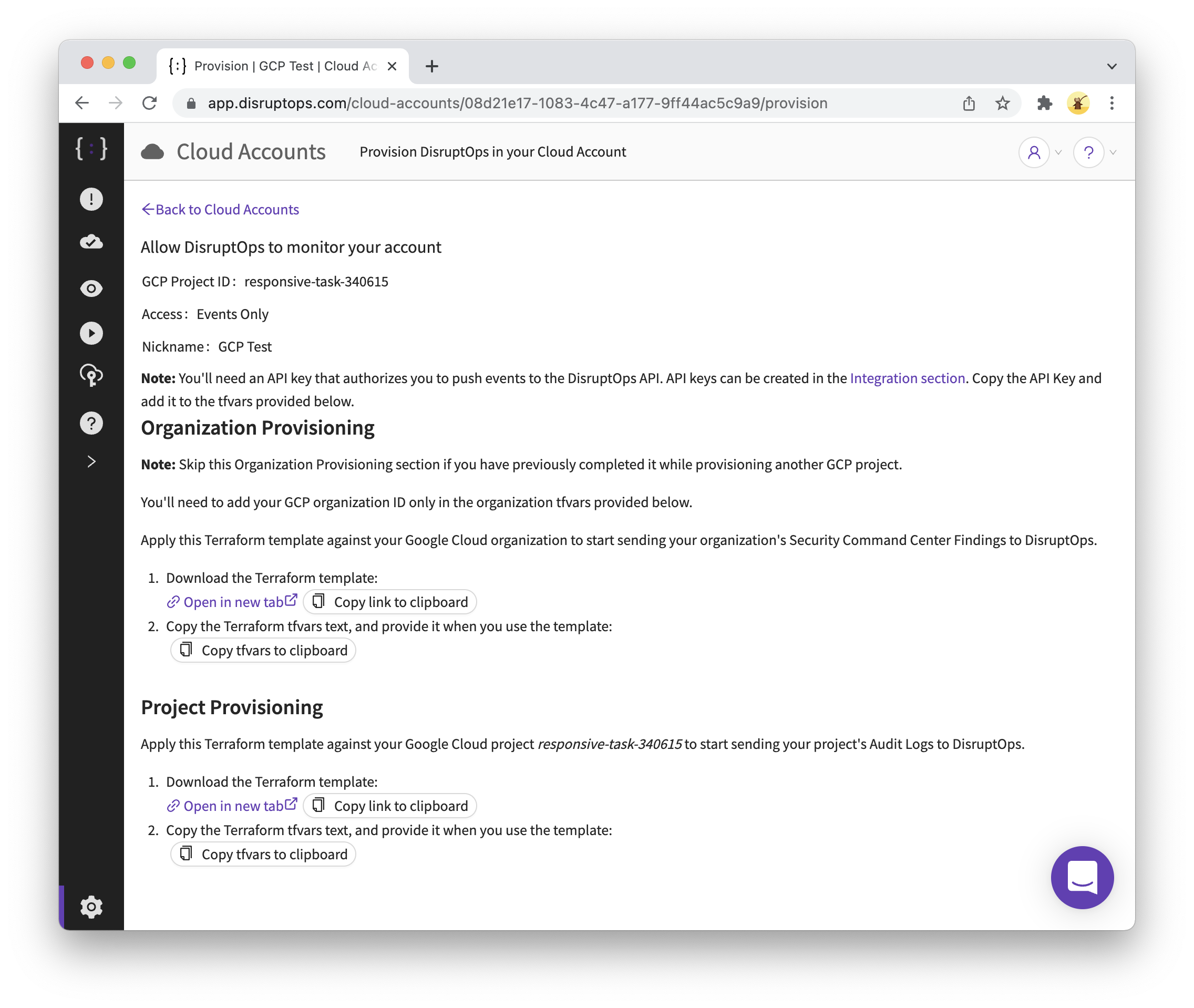
- Apply the project template: download it, copy its tfvars, add the API key, and apply it against the project.
The Provision page doesn't show a provisioned status for GCP accounts. Events arriving under Events are the confirmation.
What the templates create
| Template | Resources | Purpose |
|---|---|---|
| Organization, once | Enables the Pub/Sub and Security Command Center APIs; a Pub/Sub topic with a push subscription to Cloud Defense; a service account allowed to manage notification configs; a Security Command Center notification config that publishes to the topic | Forwards every new finding in the organization to Cloud Defense |
| Project, per project | Enables the Pub/Sub API; a Pub/Sub topic, a log sink from the project's audit logs to it, and a push subscription to Cloud Defense | Forwards the project's audit log events to Cloud Defense |
Both push subscriptions deliver to the Cloud Defense API with your API key. You own everything the templates create and can remove it with Terraform at any time.
Verify it landed
| What to check | Where to look |
|---|---|
| Events are arriving | Events, with the Account filter set to the GCP project. The list may be empty right after setup; make a change in the project, click Refresh, and expand an event for its details |
| Findings are arriving | The same list, once Security Command Center reports a finding in the organization |
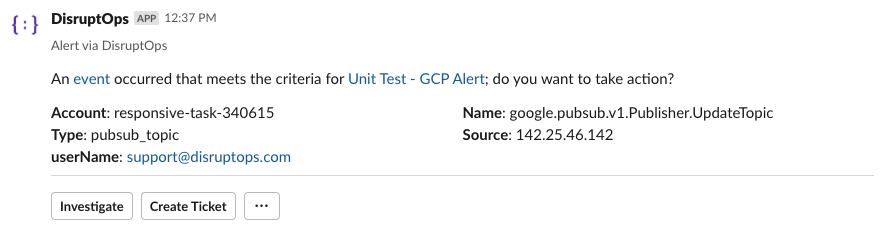
| Alerts | Alert rules apply to these events like any other. The example below is one delivered to Slack |